MODULE 6 · DATA
Import Data
QRecon supports importing transaction data using either automatic synchronisation through connected providers or manual CSV file imports - use either method based on your workflow.
Part 9 - Bring in Data
9.1 - Auto sync (PayPal / Stripe)
Pull payouts directly from a connected PayPal or Stripe account.
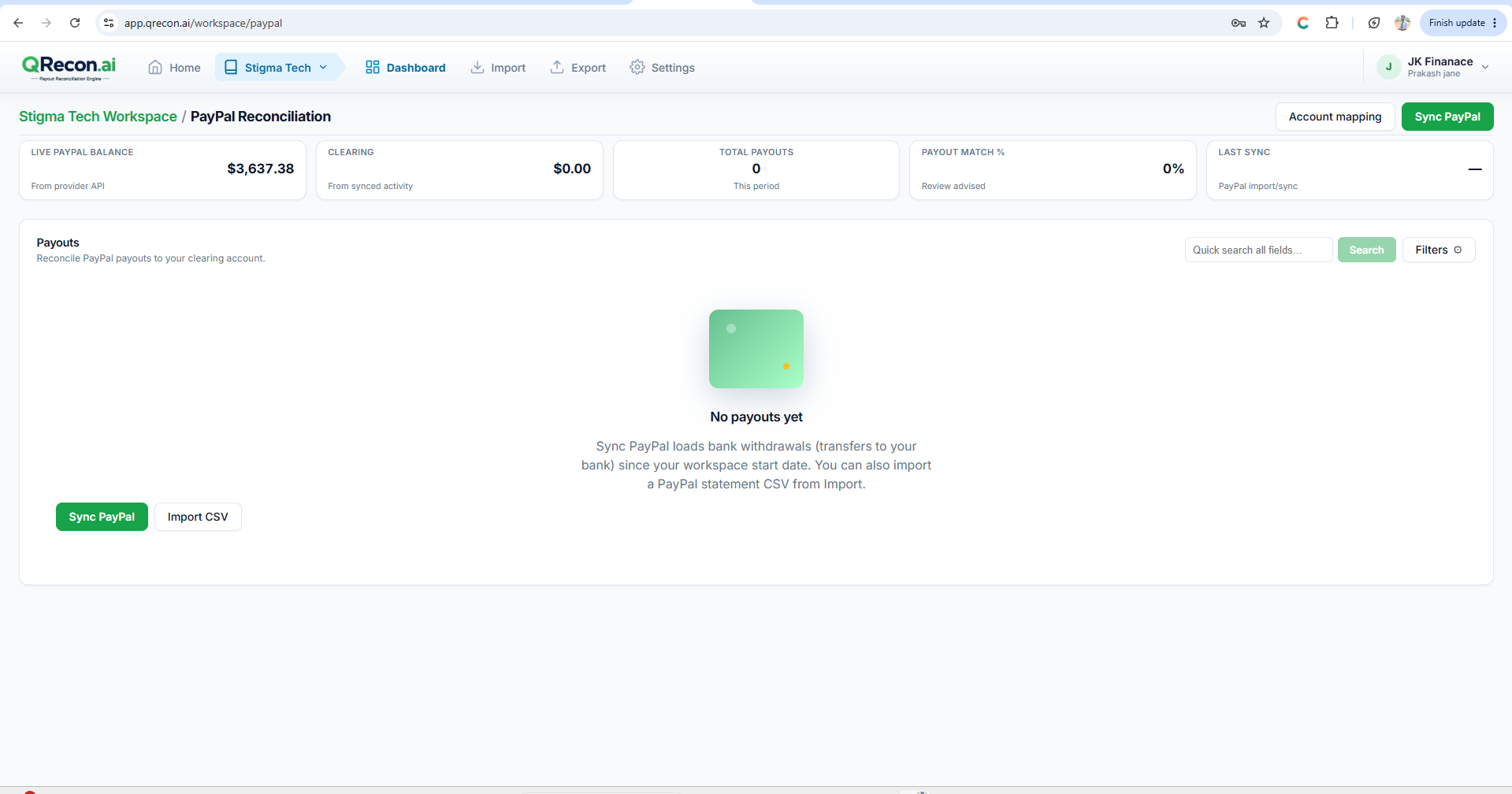
- Open the workspace Dashboard, then the PayPal or Stripe view.
- Confirm the provider is Connected under Settings → Connections.
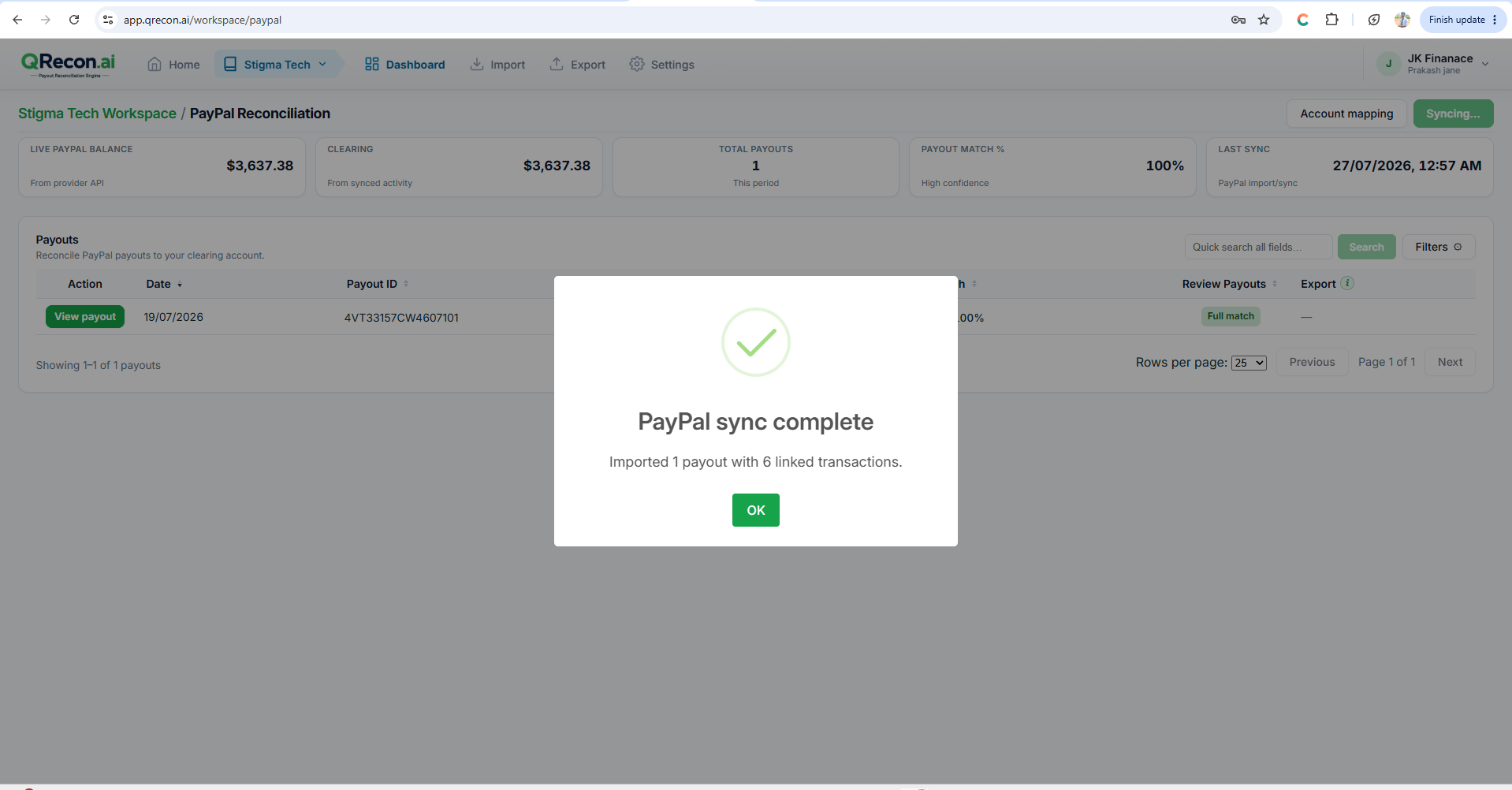
- Click Sync PayPal or Sync Stripe.
- Wait for Syncing… to finish; check Last sync and the payout list.
💡
Note: PayPal sync loads bank withdrawals (transfers to your bank) since the workspace Reconciliation start date.
⚠️
Important: If Sync is disabled, connect the provider under Settings → Connections first.
9.2 - Manual CSV import
Use CSV when you do not have API access, or prefer statement files.
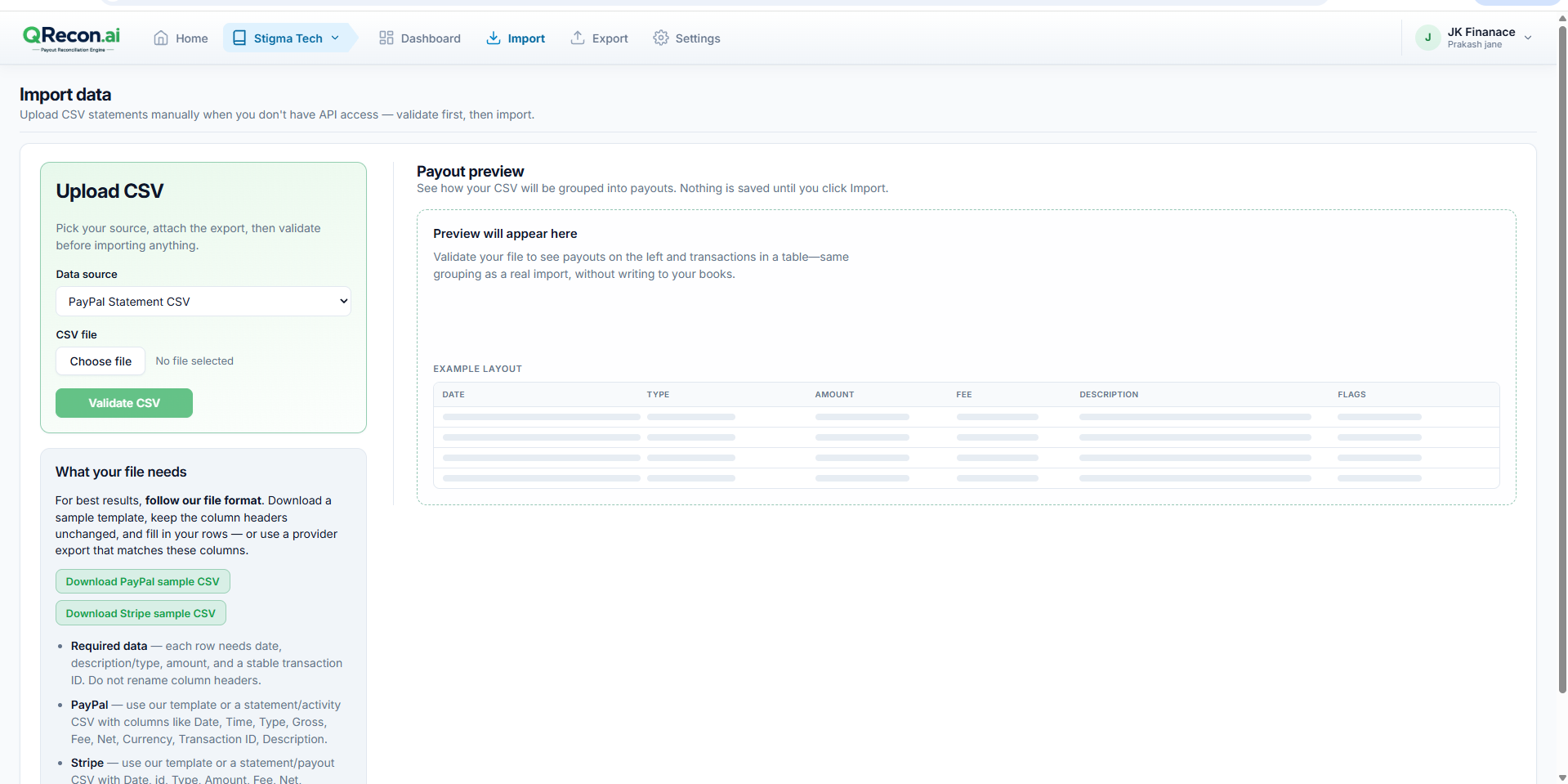
- Go to Import.
- Choose data source: PayPal Statement CSV or Stripe Statement CSV.
- Choose file → Validate CSV.
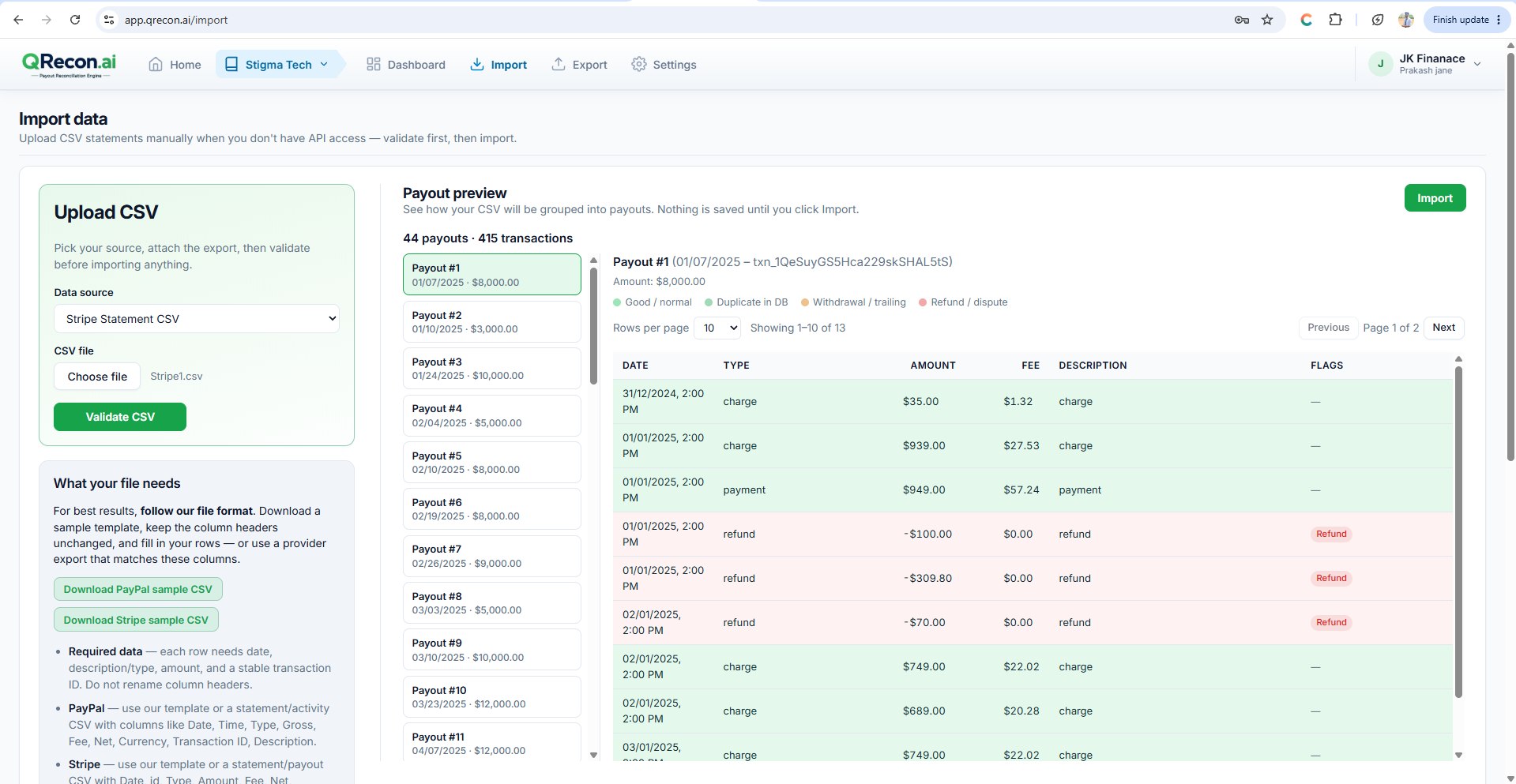
- Review validation (payout and transaction counts).
- Preview, then click Import.
File Requirements
- Keep all column headers unchanged.
- Use the sample templates available on the Import page whenever possible.
PayPal CSV columns
Date
Time
Type
Gross
Fee
Net
Currency
Transaction ID
Description
Stripe CSV columns
Date
ID
Type
Amount
Fee
Net
Currency
Description