MODULE 2 · FIRM SETUP
Company Settings
Manage your profile and firm-level settings, then create roles before adding your team members.
Part 4 - Firm setup (admin)
Use the account menu (top right) for firm-level settings.
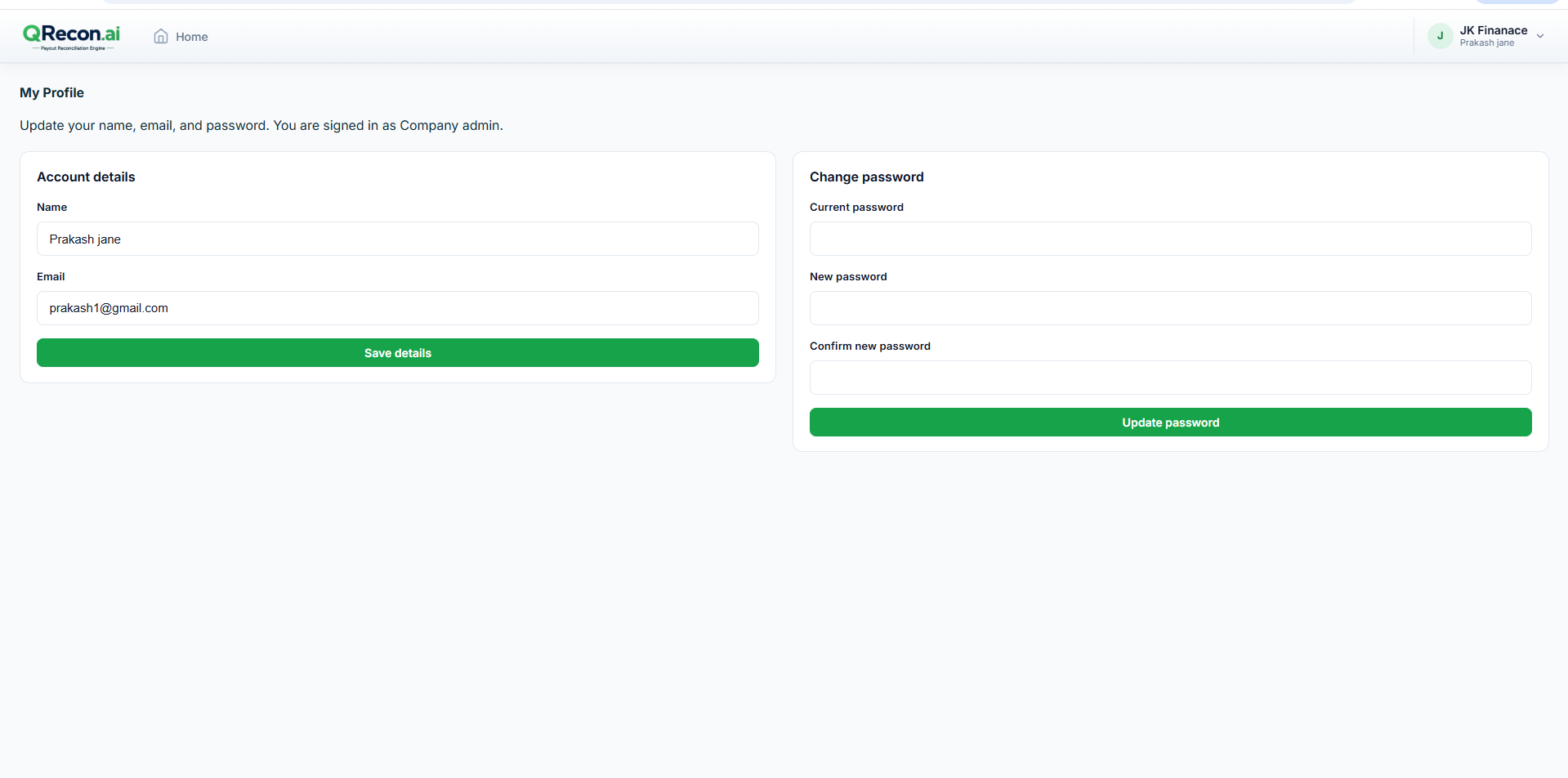
4.1 - My Profile
- Account menu → My Profile.
- Update your details if needed → Save details.
- To change password: enter current and new password → Update password.
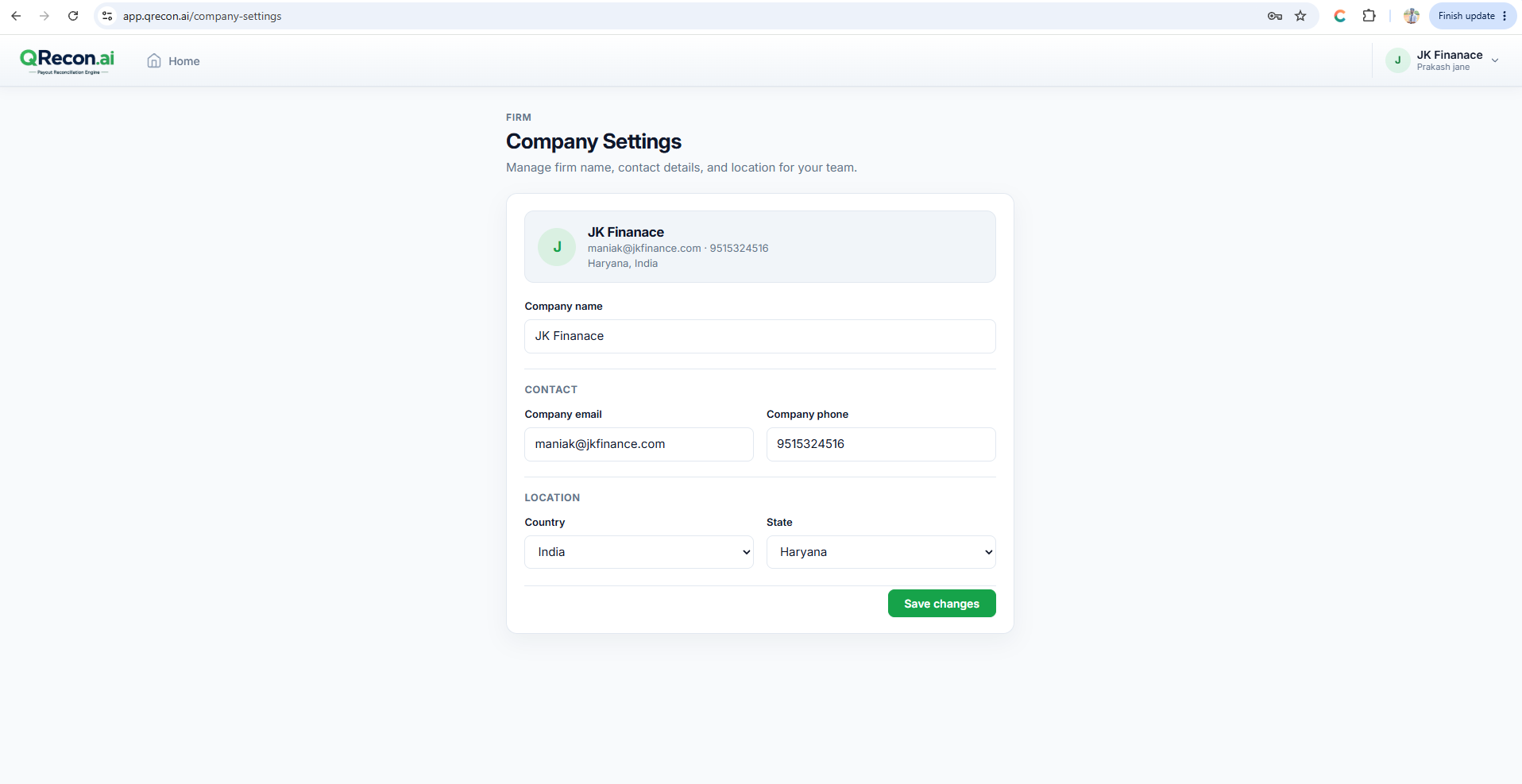
4.2 - Company Settings
- Account menu → Company Settings.
- Update firm contact and location.
- Save.
Part 5 - Add employees (roles, then users)
Create Roles before Users. You need at least one active role before you can add team members.
📝
Only firm admins manage Roles and Users. Team users work inside workspaces based on their role permissions.
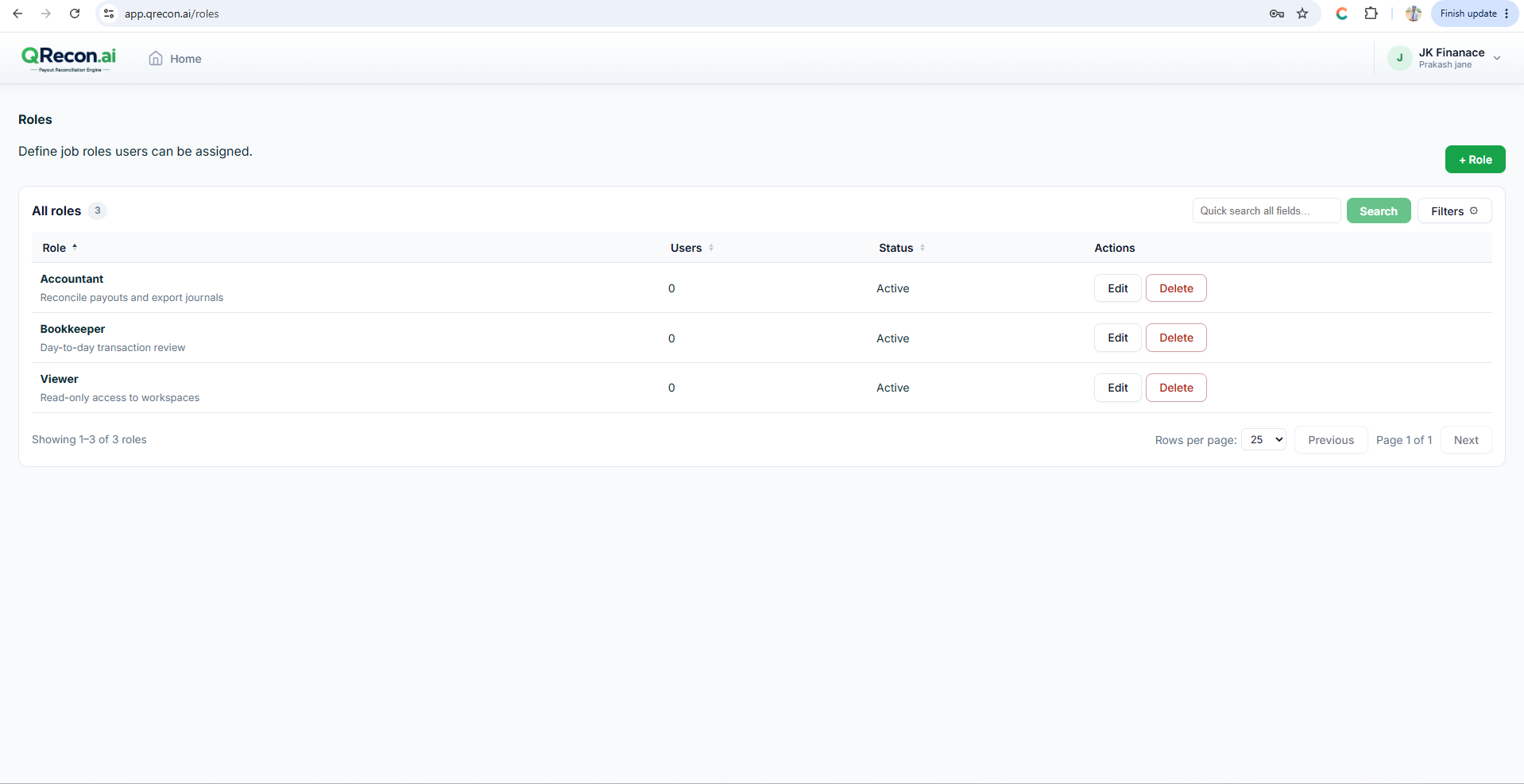
5.1 - Create roles
- Account menu → Roles.
- Add a role (for example "Bookkeeper" or "Reviewer").
- Set permissions and save.
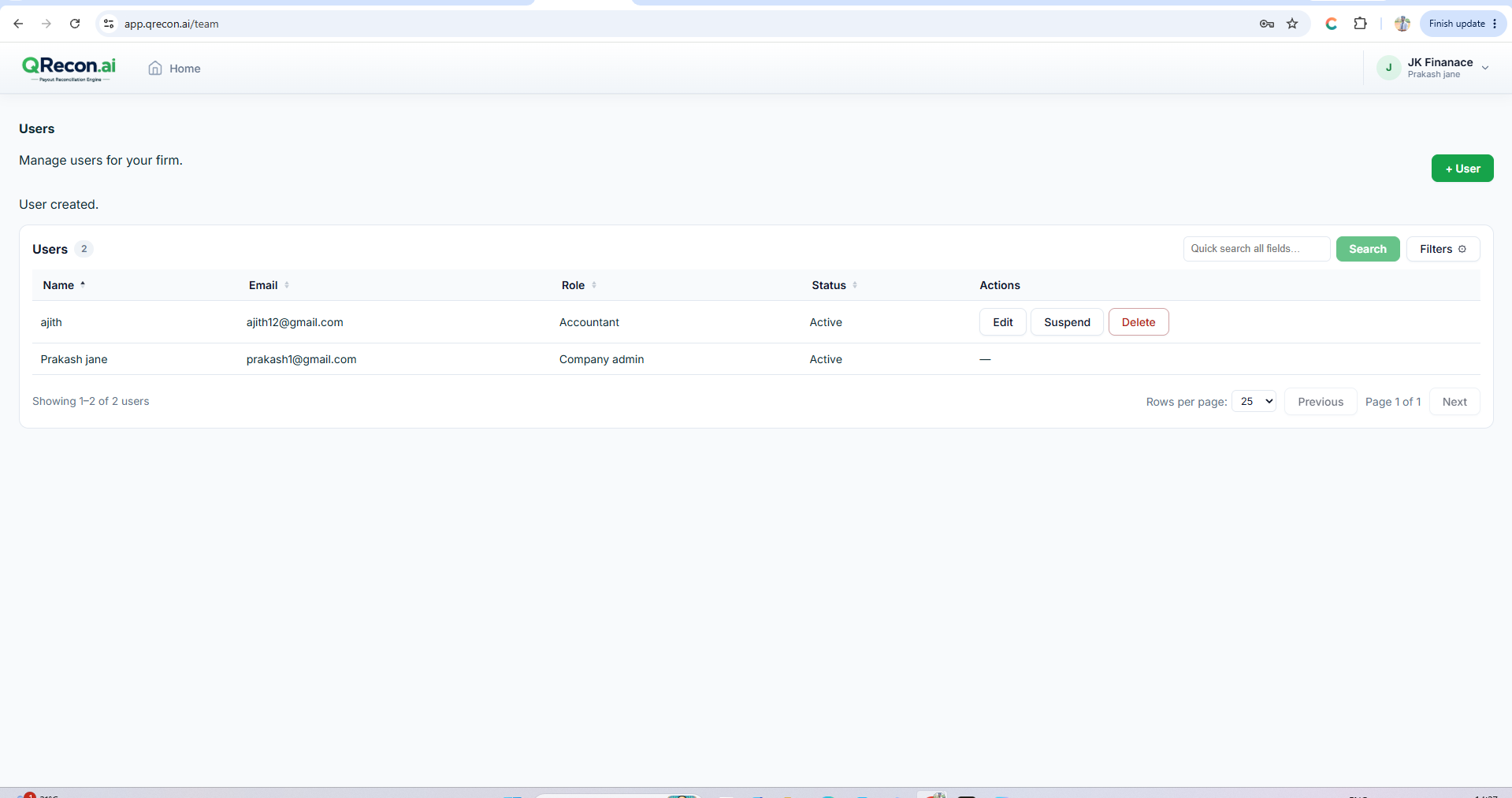
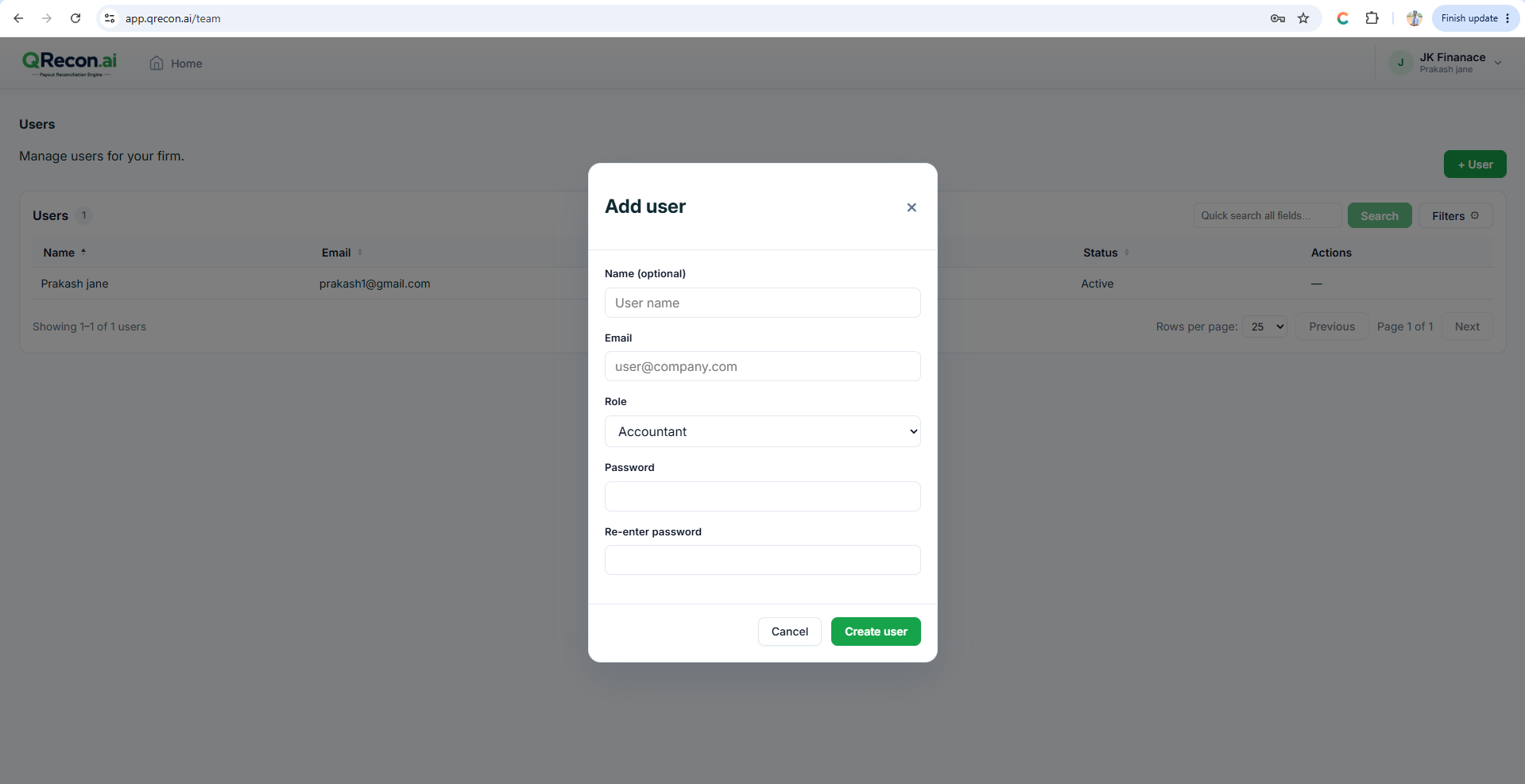
5.2 - Add users
- Account menu → Users.
- Click Add user.
- Enter name, email, password, and role.
- Click Create user.
📝
There is no email invite flow - the admin sets the password when creating the user.
5.3 - Edit users
- On Users, open Edit for a team member.
- Update details or role → Save changes.