MODULE 1 · GETTING STARTED
Signup & Login
Create your firm admin account at app.qrecon.ai, pick a plan, then sign in whenever you return.
Part 1 - Create your admin account
Step 1.1 - Open registration
- Go to https://app.qrecon.ai.
- Choose Create one for free (or open
/register).
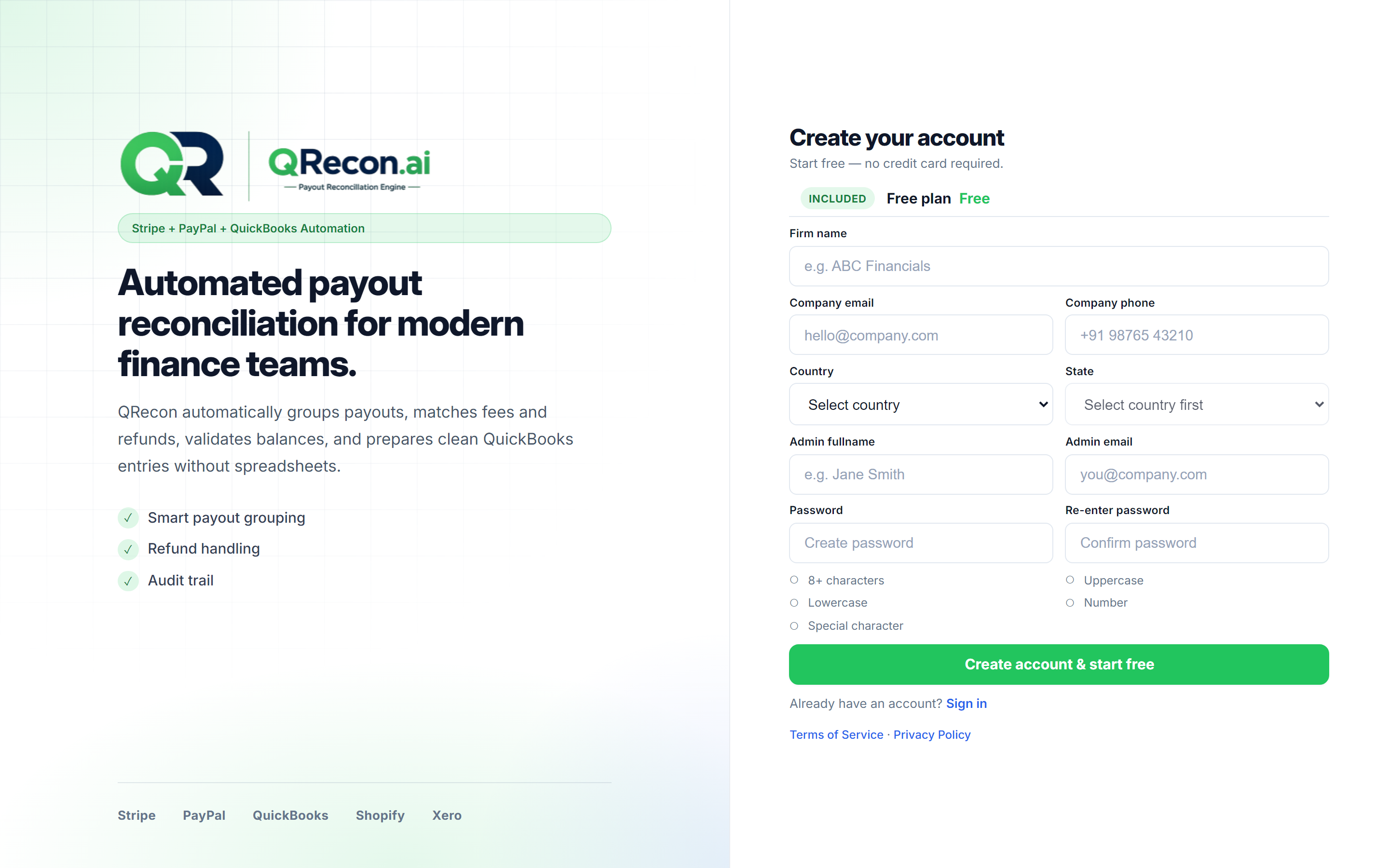
Step 1.2 - Enter firm and admin details
| Field | What to enter |
|---|---|
| Firm name | Your accounting or bookkeeping firm |
| Company email | Firm contact email |
| Company phone | Firm phone number |
| Country / State | Firm location |
| Admin full name | Primary administrator |
| Admin email | Login email address |
| Password / Re-enter password | Must meet the checklist (8+ characters, upper, lower, number, special) |
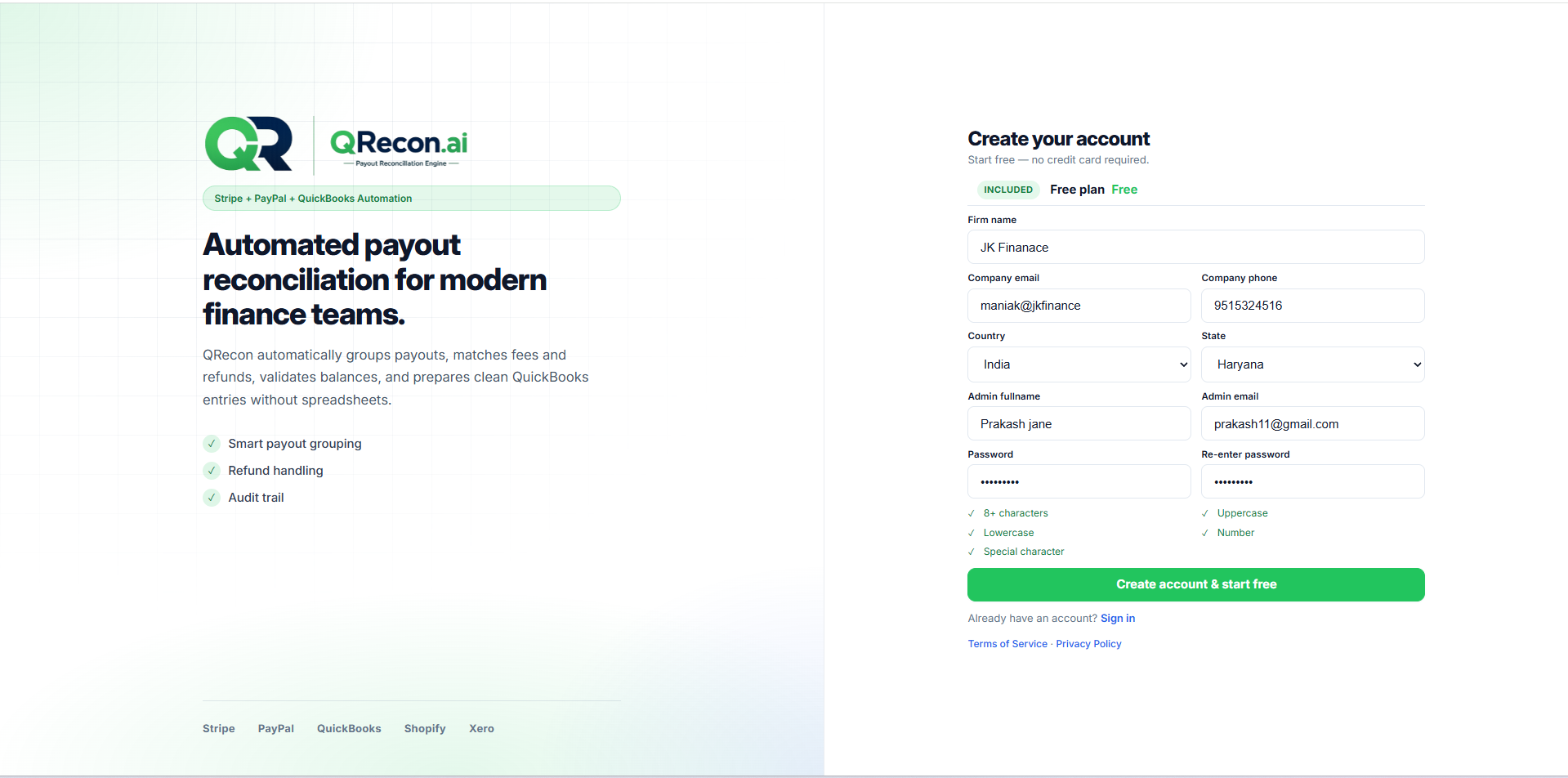
Step 1.3 - Create the account
- Confirm the password checklist is complete.
- Click Create account & start free.
- Wait for Creating account… to finish.
Part 2 - Choose your plan
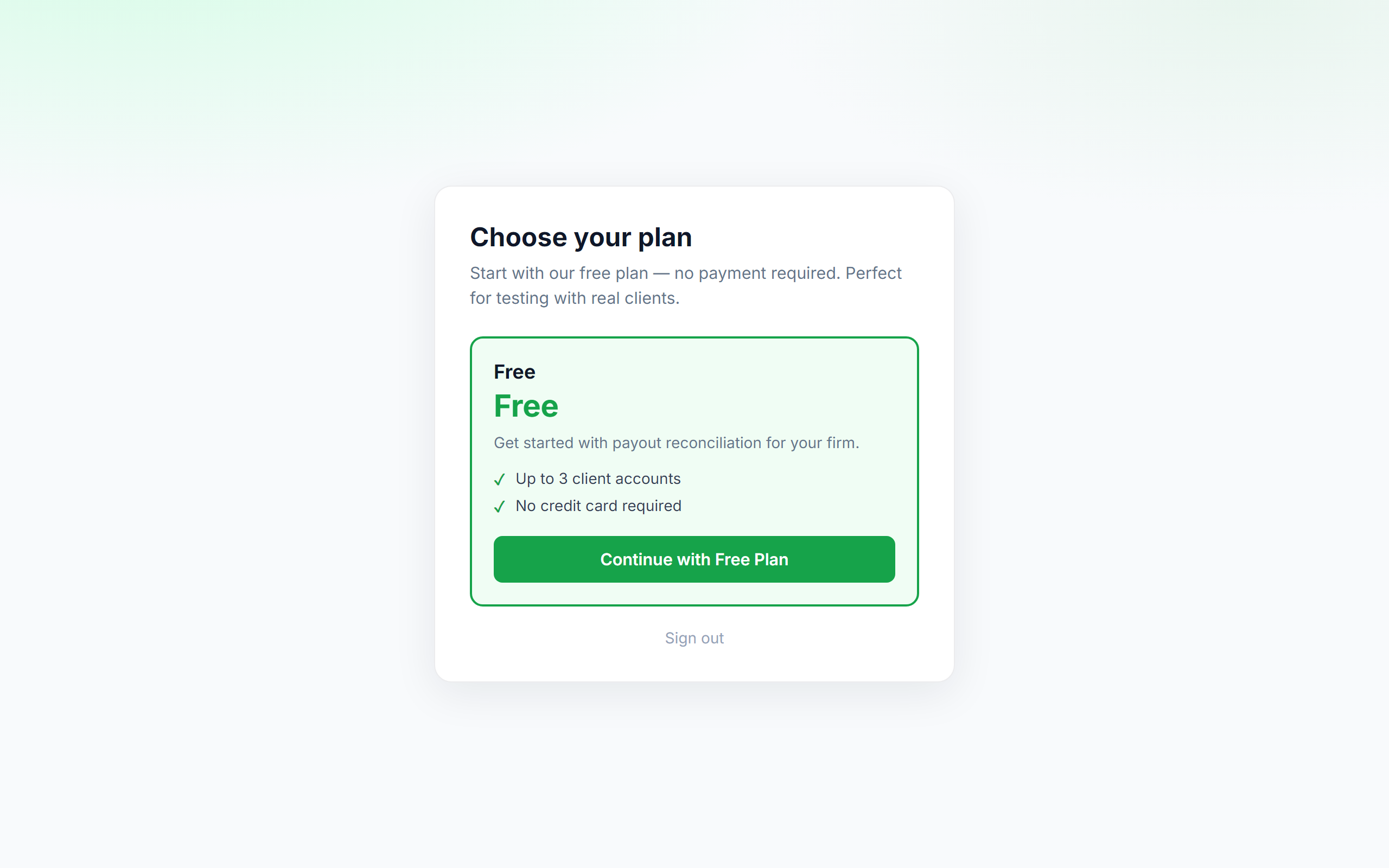
You may see Choose your plan right after signup.
- Review the available plan (for example Free).
- Click Continue with Free Plan (or the plan you need).
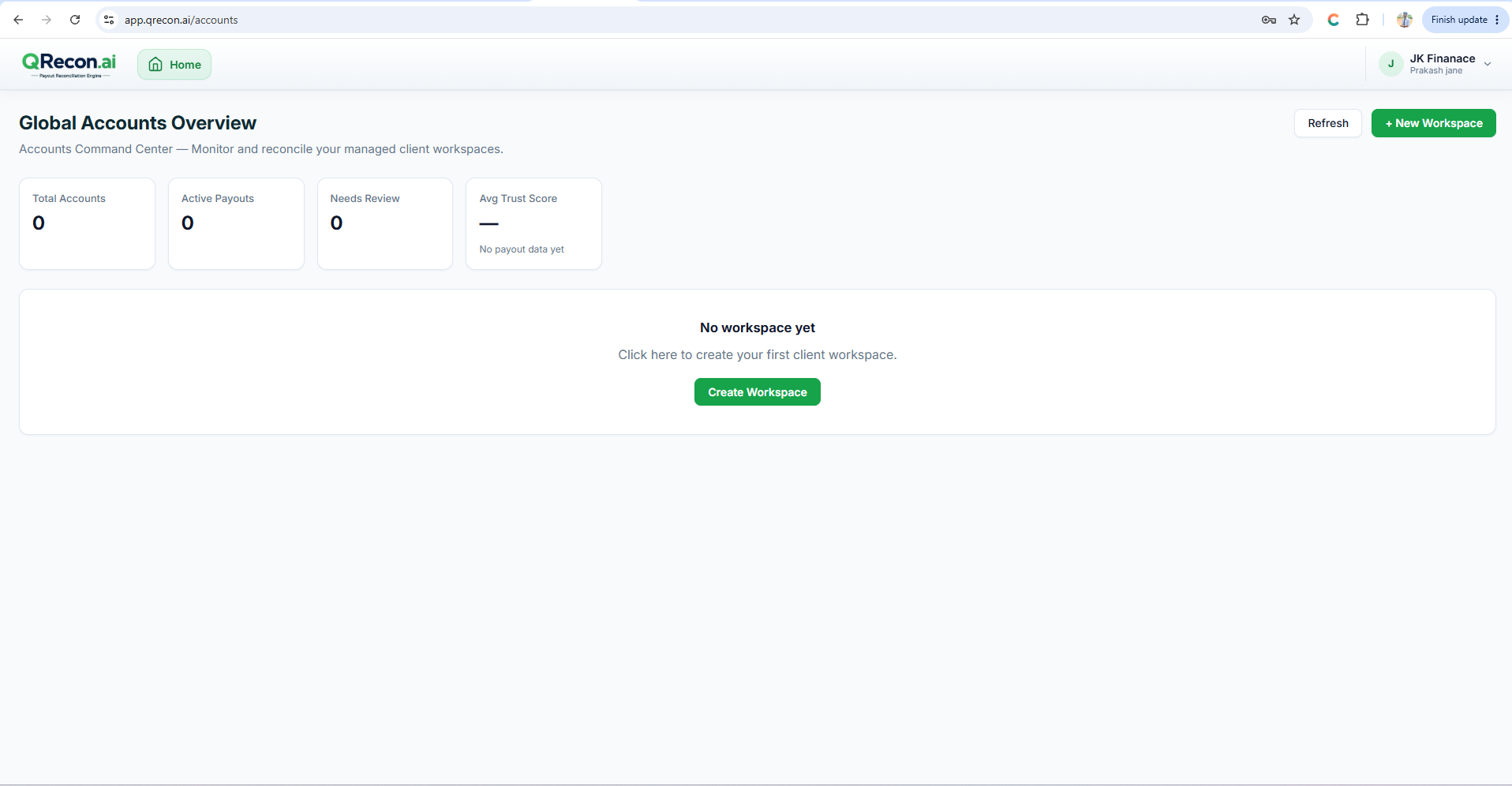
- You arrive at Global Accounts Overview.
📝
If access later expires, you may see Renew your access and use the same flow.
Part 3 - Sign in (returning users)
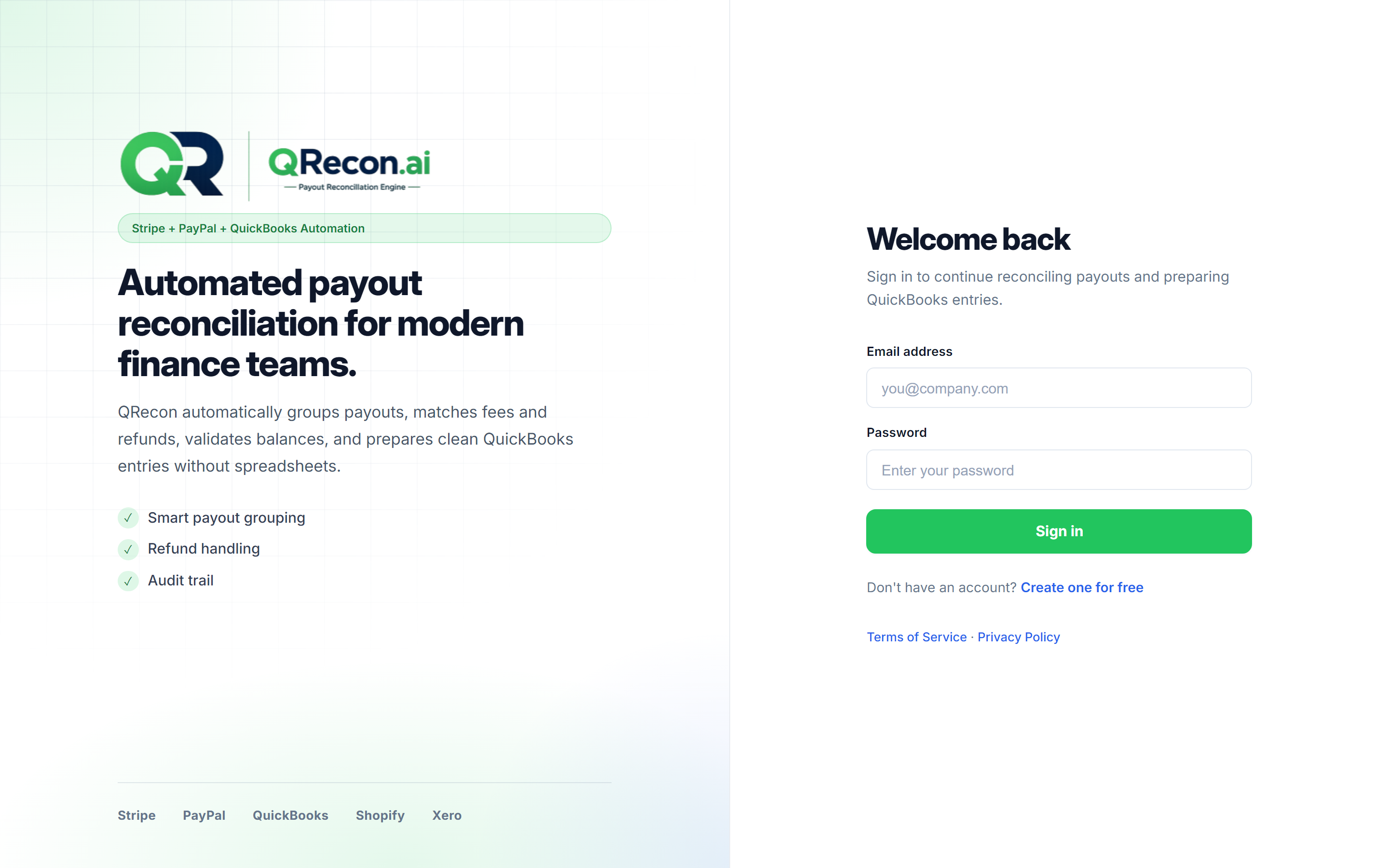
- Open https://app.qrecon.ai/login.
- Enter Email address and Password.
- Click Sign in.
After login:
- Active subscription → Global Accounts Overview (
/accounts) - Inactive subscription → Choose your plan
💡
There is no self-service “forgot password” yet. Change your password from My Profile while signed in, or ask a firm admin to update it under Users.